Your client portal, step by step
Everything you do with us, from your phone: send documents, sign your return, see your status and pay your invoice. This guide shows each screen, with a sample client.
-
1.
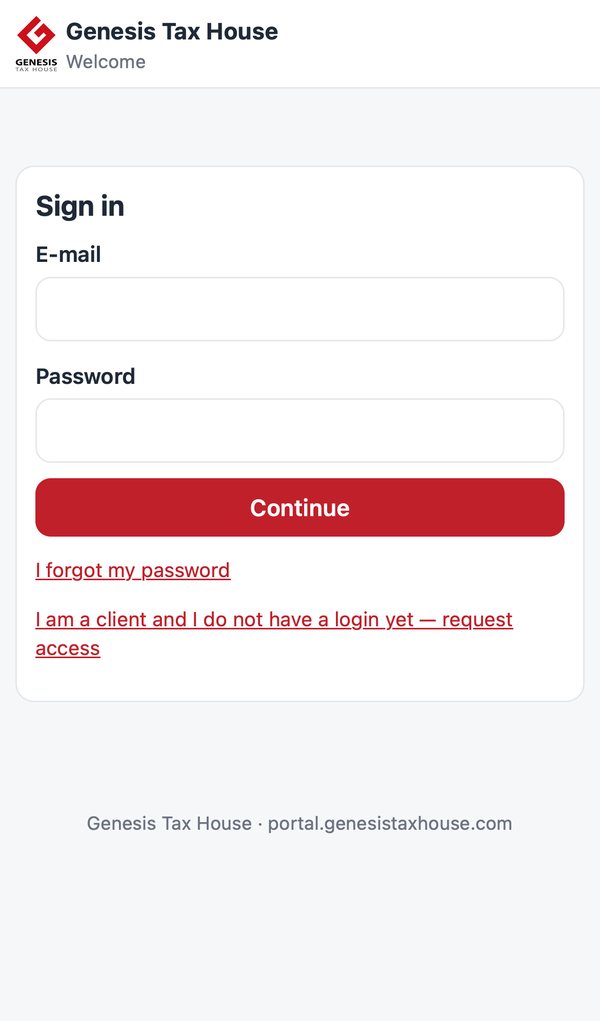
Sign in
Go to portal.genesistaxhouse.com and enter your e-mail and password. No login yet? Tap “I am a client and I do not have a login yet” to request access.
-
2.
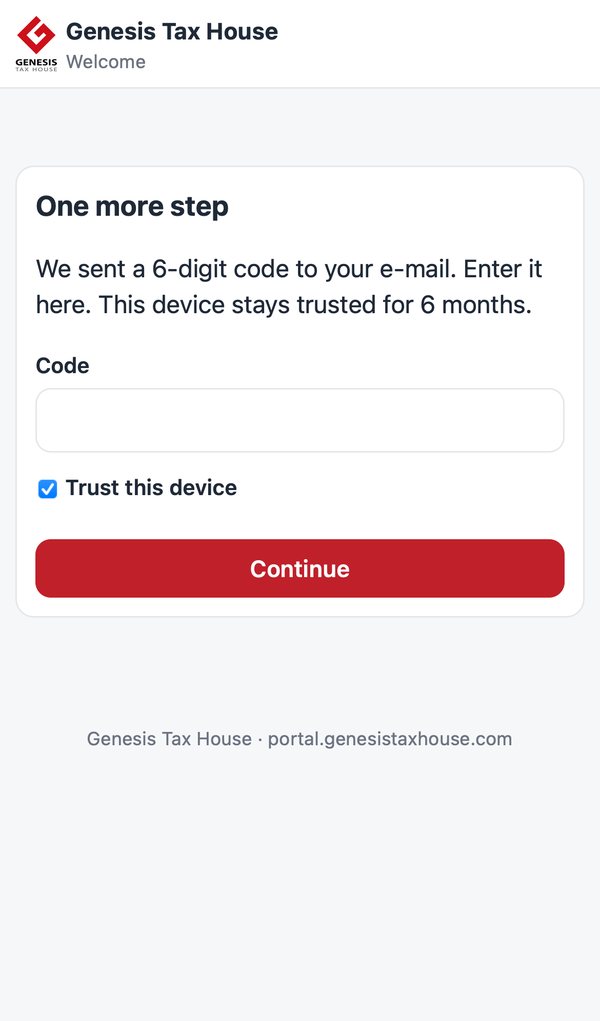
Confirm it is you
On a new phone or computer we send a 6-digit code to your e-mail. Enter it once. That device stays trusted for 6 months.
-
3.
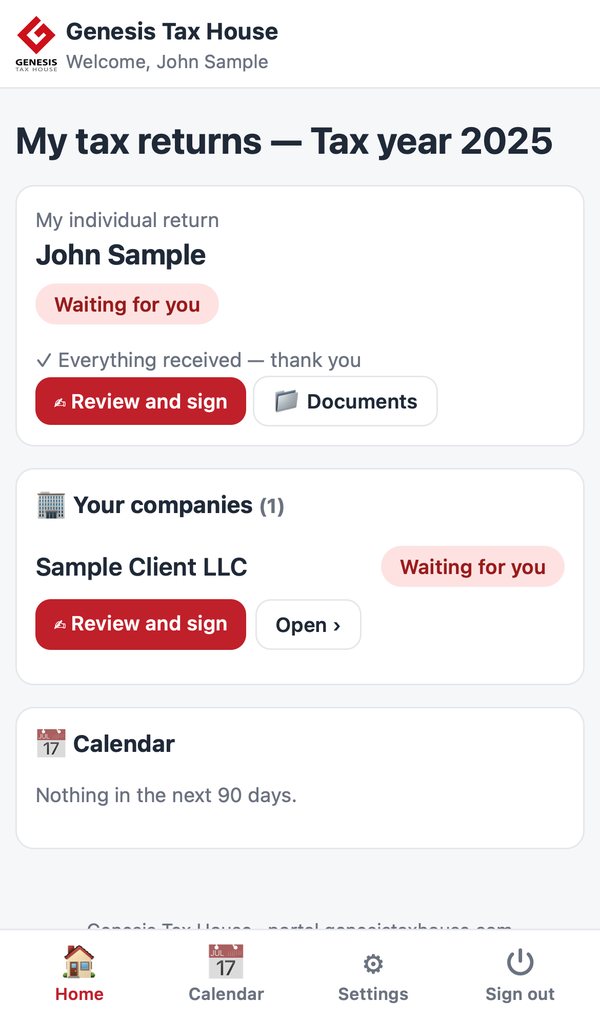
Your home
You see your own return and each of your companies, with the status of the tax year and what we are waiting for.
-
4.
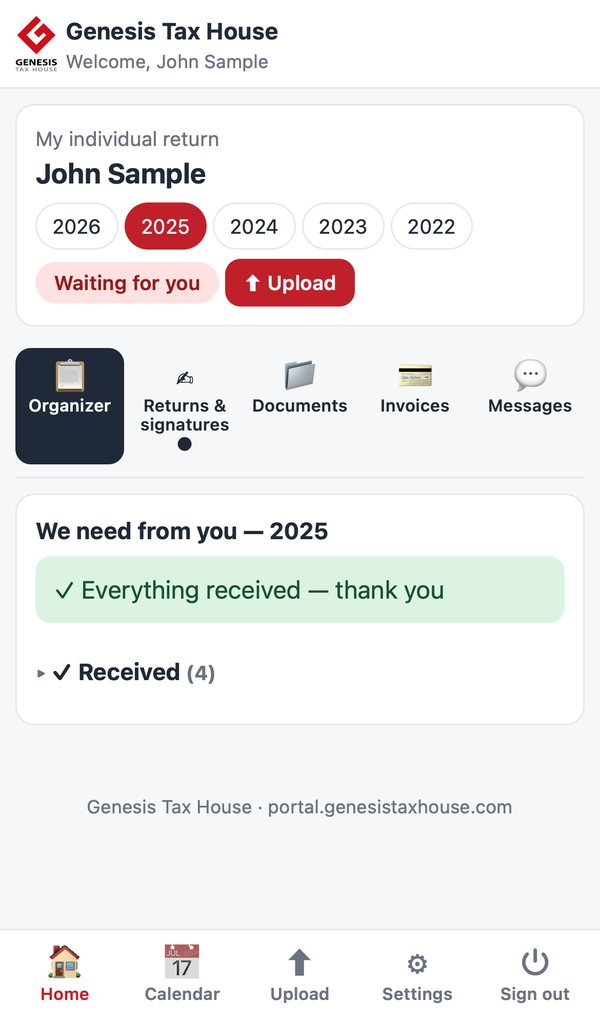
What we need from you
The Organizer lists the documents for the year. Tap Upload and take a photo of each one. When the list is complete, you see “Everything received”.
-
5.
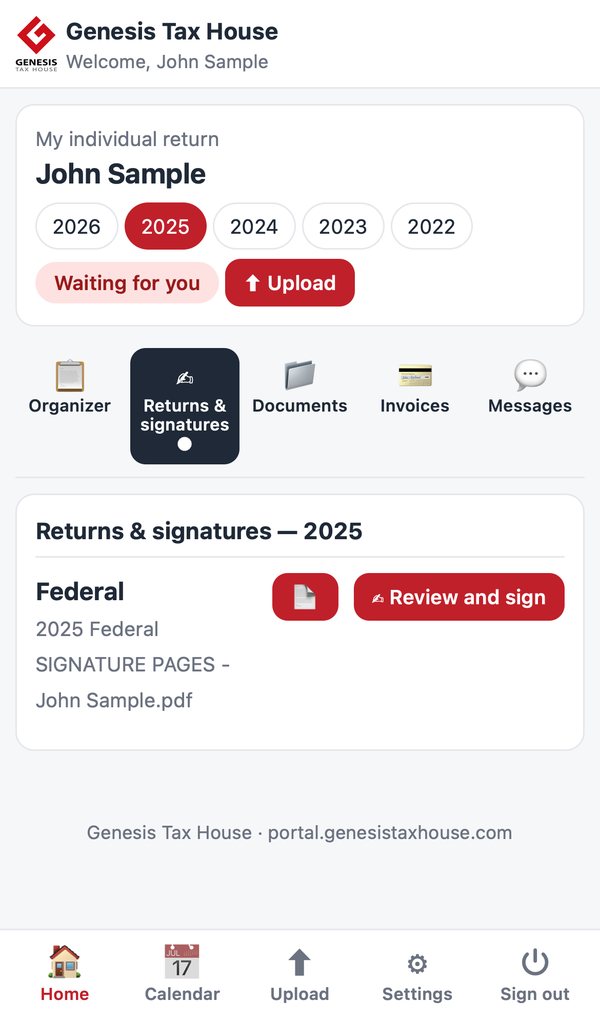
Review and sign
When your return is ready, open Returns & signatures, read it and tap Review and sign. You sign on the screen.
-
6.
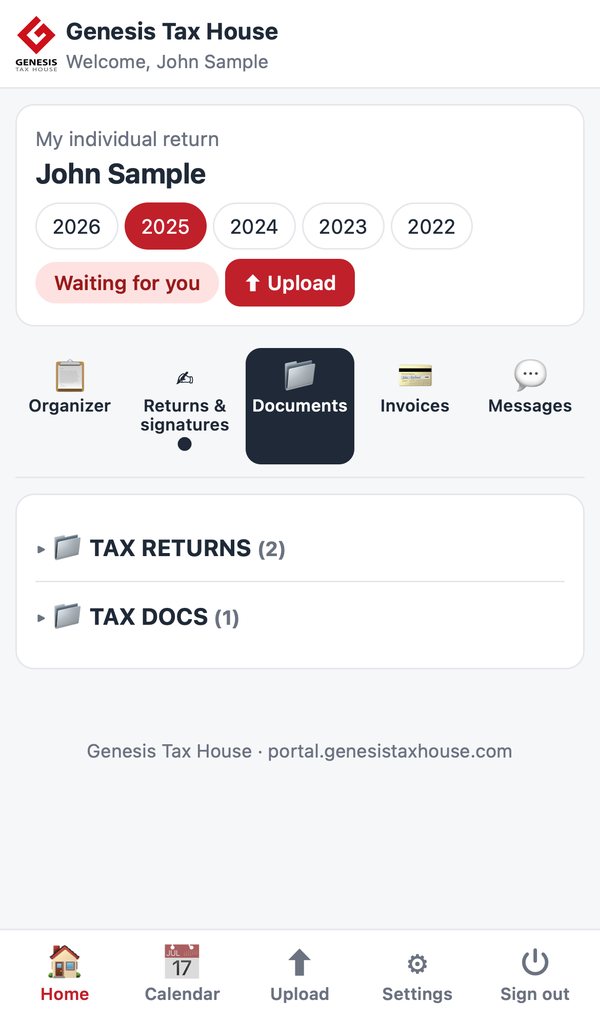
Your documents
Your returns and the documents you sent stay in folders, year by year. You can open them at any time.
-
7.
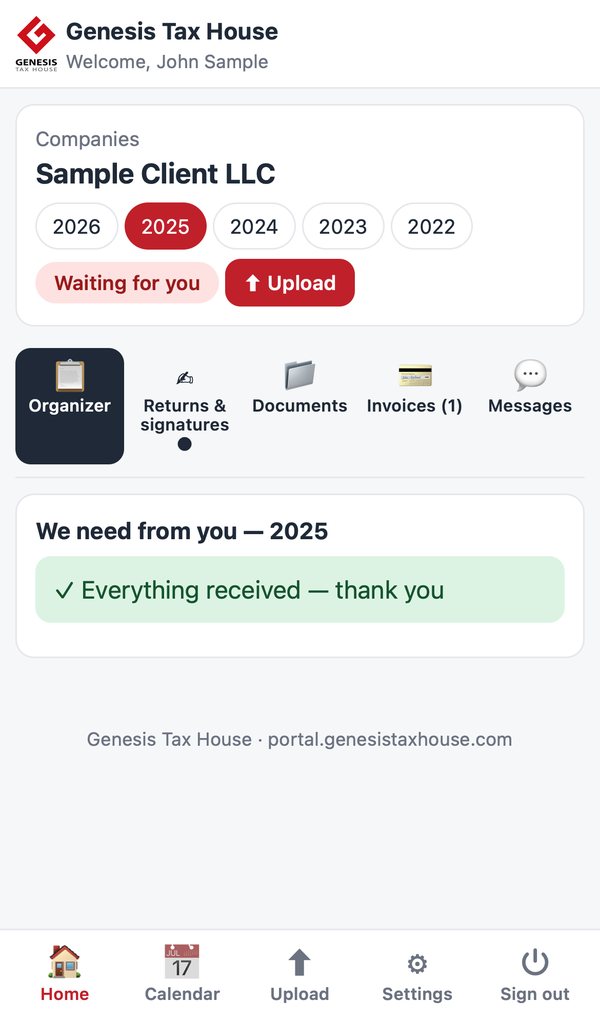
Your companies
Each company has its own page with the same tabs. In Invoices you open an invoice and tap Pay to pay by card. In Messages you write to us.
-
8.
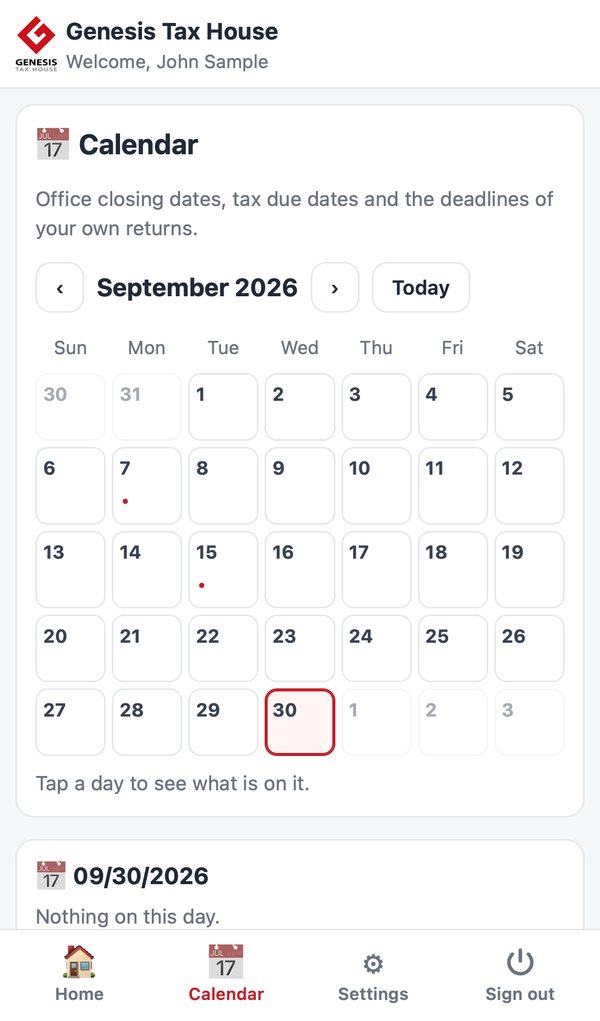
Calendar
Tax due dates, the deadlines of your own returns, your appointments and the days the office is closed.
-
9.
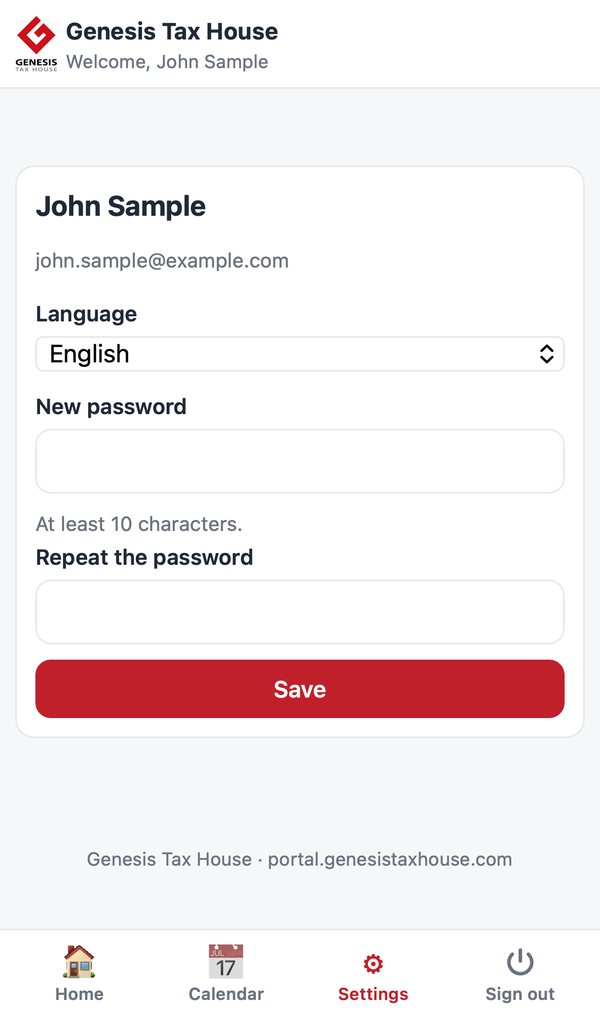
Your account
In Settings you change the language (English, Português, Español) and your password.
-
10.
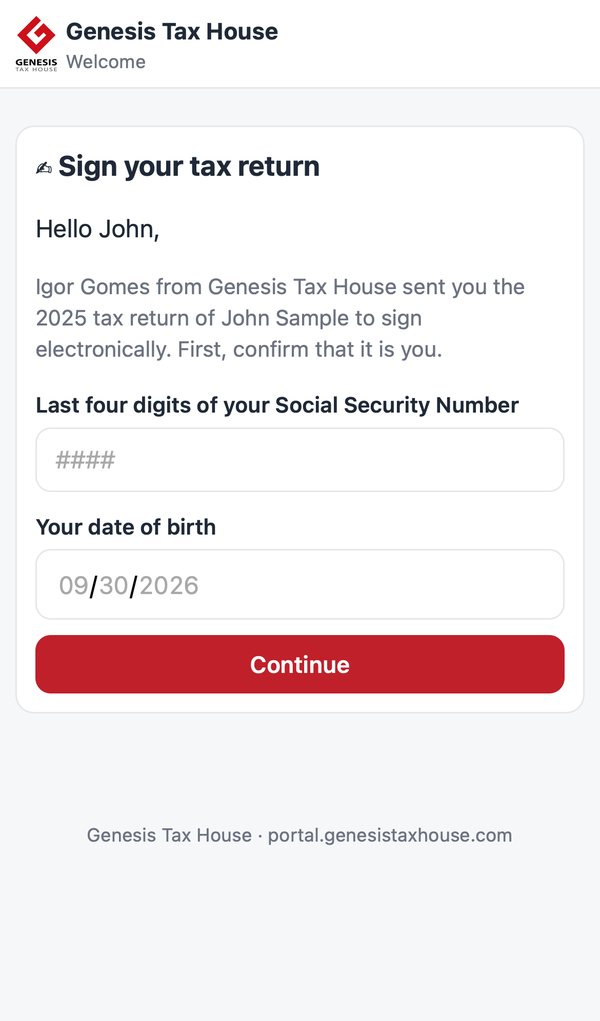
Signing from an e-mail
When we send you a return to sign by e-mail, the link first asks for the last four digits of your Social Security Number and your date of birth. Then you sign on the screen.